Tuesday, June 13, 2023

How to Tell if You Are an Administrator


How to Tell if You Are an Administrator

You will need to have administrative privileges in order to install software or perform certain other functions. To find out if you are an administrator on your particular computer, choose one of the links below:


Microsoft Windows 10

  1. Click on the Start button.
  2. Select Control Panel.
  3. In the Control Panel window, click on the User Accounts link.
  4. In the User Accounts window, click on the User Accounts link.
    • On the right hand side of the User Accounts window will be listed your account name, account icon and a description.
    • If the word “Administrator” is in your account’s description, then you are an administrator.
    • If the words “Standard user” are there, then you are not an administrator and will need to log in as a different user.

Microsoft Windows Server 2003

  1. Click on the Start button.
  2. Select Control Panel.
  3. In the Control Panel window, double click on the User Accounts icon.
  4. In the lower half of the User Accounts window, under the or pick an account to change heading, find your user account.
  5. If the words “Computer administrator” are in your account’s description, then you are an administrator.
    If the words “Limited user” are there, then you are not an administrator and will need to log in as a different user.

Mac OS X

  1. Open the Apple menu.
  2. Select System Preferences.
  3. In the System Preferences window, click on the Users & Groups icon.
  4. On the left side of window that opens, locate your account name in the list.
    • If the word Admin is immediately below your account name, then you are an administrator on this machine.
    • If the word Standard is there, then you are not an administrator and your account cannot be used to install software or make administrative changes.

Monday, January 11, 2021

How to rename mailbox display name in Outlook 2016 or 2019


  1. Go to File > Options > Advanced > Click on Send/Receive…
  2. Press the Edit.
  3. Select your Outlook.com/Hotmail account on the left.
  4. Press the Account Properties.
  5. Type the display name for your account on the General tab.
  6. Press OK until all dialogs are closed and you are back in the main Outlook window.


Monday, November 9, 2020

Turn pop-ups on or off Chrome


Turn pop-ups on or off

  1. On your computer, open Chrome.
  2. At the top right, click More. Settings.
  3. Under "Privacy and security," click Site settings.
  4. Click Pop-ups and redirects.
  5. At the top, turn the setting to Allowed or Blocked.

Sunday, May 17, 2020

Delete Downloaded Windows Update Files in Windows 10


  1. Open File Explorer OR Run Command
  2. Go to C:\WINDOWS\SoftwareDistribution\Download. Copy-paste this path to the explorer's address bar.
  3. Select all files of the folder(press the Ctrl-A keys).
  4. Press the Delete key on the keyboard.

Sunday, November 17, 2019

Why am I getting conflicted copies while using the Dropbox ?

If you and another person are editing a file at the same time and both of you have unsaved changes, you’ll see a red Dropbox badge with an exclamation mark. At this point you can create a conflicted copy

Thursday, November 14, 2019

Remove and clear all filters applied in selected folder

Step 1: Click to open the folder that you will clear filters from. In our case, we open the Inbox.
Step 2: To open the Advanced View Settings dialog box:

  1. In Outlook 2010 and 2013, please click the View Settings button on the View tab;
  2. In Outlook 2007, please click the View > Current View > Customize Current View.
  3. Step 3: In the popping up dialog box, please click the Filter button.

    Step 4: Then click the Clear All button in the Filter dialog box.

    Step 5: Click both OK buttons in two dialog boxes.
    Then all filters applied in the opening folder is removed immediately.


Wednesday, November 13, 2019

What is the difference between 2.4 GHz and 5 GHz wireless frequencies?

The primary differences between the two frequencies are the range (coverage) and bandwidth (speed) that the bands provide. The 2.4 GHz band provides coverage at a longer range but transmits data at slower speeds. The 5 GHz band provides less coverage but transmits data at faster speeds.


In simple words
  • 5Ghz wifi is high speed as well as low area covering because of shorter wavelength
  • 2.5Ghz wifi is less speed and more area covered because of low frequency than 5 ghz .

Tuesday, November 5, 2019

How to Update WhatsApp on Android


  1. Go to Google Play store;
  2. Choose "My apps & games";
  3. On the installed apps list, see if WhatsApp has new update;
  4. Tap "WhatsApp" > "Update". ... 

How to set Fingerprint Unlock for WhatsApp


Monday, October 28, 2019

Connect to a projector or PC

press the Windows logo key + P, and then choose one of the four options:
  • PC screen only. You'll see everything on your PC. (When you're connected to a wireless projector, this option changes to Disconnect.)
  • Duplicate. You'll see the same things on both screens.
  • Extend. You'll see everything across both screens, and you can drag and move items between the two.
  • Second screen only. You'll see everything on the connected screen. The other screen will be blank.
Then again, you might not even need a cable. If your PC and the projector both support Miracast, press the Windows logo key + P, select Connect to a wireless display, choose a projector, and you're set.


Thursday, October 24, 2019

Turn off Calendar Alert in Outlook 2016

  1. Go to File | Options.
  2. Select Calendar from the left hand menu.
  3. To turn default reminders on or off for all new appointments or meetings, under Calendar options, select or clear the Default reminders check box.

Wednesday, October 23, 2019

Find your IMEI number on your phone

Find your IMEI number on your phone

IEMI Numbers explained

The IEMI also known as International Mobile Station Equipment Identity is a unique number given to a mobile phone, as well as some satellite phones. The IEMI number can be found inside the phone or alternatively you can view the IEMI number by typing in *#06# on your mobile phone keypad.

Finding your IEMI number

  • You can find your IEMI number by typing *#06# on the kepay of your handset this will show the IMEI number of the handset you are using


The IEMI number is used to identify if a mobile hanset has been stolen.

Tuesday, October 22, 2019

Common Health Problems Caused by Computer Use

  • Muscle Problems
  • Vision Problems
  • Headache
  • Stress
  • Obesity
  • Repetitive Stress Injury
  • Radiation

Windows 10 Shortcut Keys


Windows 10 Shortcut Keys


  • Windows Key + A: Opens Windows 10 notifications
  • Windows Key + I: Opens Windows 10 settings
  • Windows Key + Ctrl + D: Creates new virtual desktop
  • Windows Key + Ctrl + F4: Closes current virtual desktop
  • Windows Key + Ctrl + Left or Right: Switches between virtual desktops
  • Windows Key + F1: Opens Edge and Searches "How do I get help in Windows 10" with Bing (formerly opens Help)
  • Windows Key + Print Screen Key: Creates a screenshot of the whole screen in the Photos app. More screenshot key commands can be found 
  • Windows Key: Shows the Windows 10 Start Menu 
  • Windows Key + L: Locks your Windows 10 device
  • Windows Key + Tab: Launches Windows 10 Task View
  • Windows Key + Enter: Opens Narrator, a program that reads text for you and shows you tips.

Desktop Commands Shortcuts
  • Windows Key + X: Opens Start button context menu
  • Windows Key + Left, Right, Up or Down: Moves the active window around on your screen. Left and Right snap the window to either side so it takes up half of the screen, Up and Down shrink the window to a quarter-size and move it to that corner. Once you have used Windows Key + Up to place it in the top corner, pressing that command again makes the window take up your whole screen. If you have hit Windows Key + Down to place a window in the bottom corner, hitting that command again minimizes the window.
  • Windows Key + D: Show Windows desktop (also available with Windows Key + M)
  • Windows Key + ,: Temporarily show desktop

Connecting and Sharing
  • Windows Key + H: Share content (if supported by current app)
  • Windows Key + K: Connect to wireless displays and audio devices 
  • Windows Key + E: Open Windows Explorer

Traditional Keyboard Shortcuts
  • Windows Key + Space: Switch keyboard input language (if you have added at least a second one)
  • Windows Key + Shift + Left or Right: Move current Window from one monitor to another (when using a multiple monitor setup)
  • Windows Key + 1, 2, 3 and so on: Open programs that are pinned to task bar
  • Windows Key + R: Run a command
  • Windows Key + P: Project a screen
  • Alt + Tab: Switch to previous window
  • Windows Key + T = Cycle through screenshots of open apps
  • Alt + F4: Close current window, but if you perform this combination when viewing the desktop, you open Power dialogue to shut down or restart Windows, put your device in sleep mode, sign out or switch the current user.

Thursday, October 17, 2019

Graphics Card Typs

Image result for different types connectors

What is the color code for cat5 or Cat 6 cable

Image result for color code for network cable

Recall and replace a message - Outlook

  1. In the folder pane on the left of the Outlook window, choose the Sent Items folder.
  2. Open the message that you want to recall. You must double-click to open the message. Selecting the message so it appears in the reading pane won't allow you to recall the message.
  3. From the Message tab, select Actions > Recall This Message.

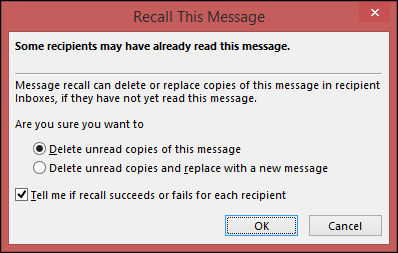
Click Delete unread copies of this message or Delete unread copies and replace with a new message, and then click OK.
Recall this message box
Binoj

What are the Outlook settings for Office 365


Office 365: POP, IMAP / SMTP settings for Office 365
POP settingsServer name: outlook.office365.com Port: 995 Encryption method: SSL
IMAP settingsServer name: outlook.office365.com Port: 993 Encryption method: SSL
SMTP settingsServer name: smtp.office365.com Port: 587 Encryption method: TLS or STARTTLS

Monday, October 14, 2019

How to Turn off Windows Updates in Windows 10


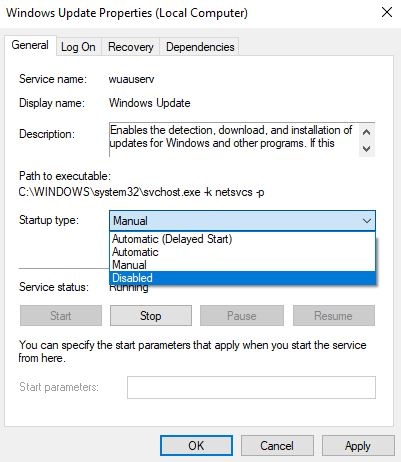
Step 1:  Go to Control Panel > Administrative Tools > Services.              In the Services window, scroll down and select Windows Update.
Step 2:  Right-click and select Properties.


Step 3:  Under the General tab > Startup Type, select disabled. That will take care of Windows Updates not being installed on your machine.


Saturday, August 10, 2019

How to enable debugger

How to enable debugger


"X++ debugging is not enabled for code running on Application Object Server"


Solution  for this Warning: open Ax Server Configuration>In Application Object Server tab set to true enable breakpoints to debugg X++ code running on this server

Friday, August 2, 2019

The X++ debugger works only for users who are in the 'Microsoft Dynamics AX debugging users' local group of windowS

  1. From the Start menu, point to All Programs, click Administrative Tools, and then click Services. 
  2. In Services, right-click the Microsoft Dynamics AX Object Server service and then click Properties. 
  3. In the Properties window, on the Log On tab, the AOS service account is specified in the This account field. 

To add the AOS service account to the debug group 

  1. From the Start menu, point to All Programs, click Administrative Tools, click Computer Management, and then click Local Users and Groups. 
  2. In Local Users and Groups, double-click Groups, right-click Microsoft Dynamics AX Debugging Users and click Add to Group. 
  3. In the Properties window, click Add and add the AOS service account to the group. 
  4. Restart the machine

Thursday, July 18, 2019

How to format a USB drive to FAT32 on a Mac

How to format a USB drive to FAT32 on a Mac

Formatting would erase data completely, make sure that you have a data backup.

You want to be able to use the drive on a Windows PC, as well as a Mac — perhaps to transfer files between the two machines.
.
The fact that Fat32 can be read from and written to on both Mac and Windows makes it very versatile. However, there is a significant limitation — individual files have a maximum size of 4GB. So, if you’re using the USB drive to store large video files, you may run into trouble. There is a solution, however, exFAT. Unlike FAT32, exFAT doesn’t have a maximum file limit. Better still, it can be read from and written to on any Mac running Mac OS X Snow Leopard or later and on Windows.

To format a USB drive in FAT32 or exFAT:

1. Plug the USB drive into your Mac.
2. Go to Applications>Utilities and launch Disk Utility.
3. Click on the USB drive in the sidebar in Disk Utility.
4. Click Erase in the Disk Utility toolbar.
5. Type in a name for the formatted disk.
6. Click on the Format menu and choose either MS-DOS (FAT32) or ExFAT.
7. Click Erase.

Tuesday, July 16, 2019

How To Setup An Archive Folder in Outlook for MAC.


Outlook 2011 for Mac

You would need to create Archive folder on the local computer. To un-hide On My Computer folder:
In Outlook 2011, click on the Outlook menu at the top of your screen, Select "Preferences", uncheck the box "Hide On My Computer Folders".
To create local archive folder right-click or (ctrl/click) on the "On My Computer", then select "New Folder".

Outlook 2016 for Mac

NOTE: The archive button is available on Exchange 2016.
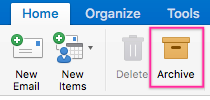
To create an archive folder choose one or more messages that you would like to archive, select "Archive" on the ribbon.
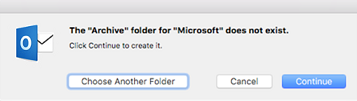
As soon as you choose "Archive", you will get a prompt the "Archive" folder for "Microsoft" does not exist, to proceed click the "Continue" button.
The Archive folder will be automatically created.

To set up archiving rule

  1. In Outlook 2011 or 2016 for Mac, go to "Tools", then select "Rules".

    The other option is to go to "Rules" from the ribbon and select "Edit rules".


  2. Select Exchange on the left pane menu and click on '+' to add a new rule:


  3. Give the rule a name and specify the conditions using drop-down lists as follows:
    • If all conditions are met: Selected.
    • When a new message arrives: Date Received | is greater than | enter any number | days old.
    • Do the following: Move Message | any folder on your computer.
    • Do not apply other rules to messages that meet these conditions: Enabling this option is up to you and depends on your other rules.
    • Enabled: Checked.


  4. Click "OK" and save the rule.
  5. Apply the rule by clicking on the source folder, then select "Rules", then "Apply" and select the name of the rule you just made.


  6. When you export the data from Archive folder, you select "File", then "Export".
    The next window comes up, select types of items that should be included in the archive file, then click the "Continue" button.


  7. On next dialog window type the name of the archive file and select the location on your MAC, where the file should be stored, then click the "Save" button.


    NOTE: This rule may run a long time the first time you run it depending on your mailbox size.
  8. After the archive is completed, you will find the .olm file with your mailbox items saved on the Mac.


  9. To confirm the items are in the file. Click on "File", then "Import", then select "Outlook for Mac Archive" file, then select the file.
    The file should displayed the list of folders. If all items are in place, you may clean out the archive folder.

Archive messages in Outlook for Mac

Archive messages in Outlook for Mac

Outlook 2016 for Mac includes a new feature called one-click archiving. This feature allows you to quickly move an item from your Inbox or another folder to an archive folder. An archived item (or items) remains accessible, but doesn't clutter your Inbox.

Archive messages with a single click

You can archive messages in any of the email accounts that you've connected to Outlook 2016 for Mac. These include Exchange (version 2016 and later), Office 365, Outlook.com, Hotmail, iCloud, Google, and Yahoo!
  1. Choose one or more messages in your folder to archive.
  2. On the ribbon, choose Archive.
  3. As soon as you choose Archive, messages are immediately moved to the archive folder you've specified. If you archive a message by mistake, go to the archive folder and move the message back to your Inbox.

First time using the archive?

If you haven't previously set up an archive folder for an email account, you'll get this prompt:
This message displays the first time you use the Archive button in Outlook 2016 for Mac
Choose one of the following:
Continue. A new folder will appear in your folder list for that email account. You'll have to repeat this process to create an archive folder for each of your email accounts. The folder will be called Archive for Office 365, Outlook.com, Hotmail, iCloud, Google, and Yahoo! accounts. The archive folder for Gmail is called All Mail.

Wednesday, July 3, 2019

msn.com launches on startup Windows 10

Open Regedit:
(Windows + R Keys simultaneously to open Run Dialog and type regedit, hit enter)
Navigate to this Key and if it exists, change the value from 1 to 0

HKEY_LOCAL_MACHINE\SYSTEM\CurrentControlSet\Services\NlaSvc\Parameters\Internet\EnableActiveProbing

Monday, January 7, 2019

“There was a problem sending the command to the program

  1. Open Excel 2007.
  2. Open the Menu in the top left.
  3. Click the “Excel Options” button.
  4. Click the advanced tab on the left of the options screen.
  5. Under the general options uncheck the box “Ignore other application that use Dynamic Data Exchange (DDE)”

Barcode Printing Issues in AX


Copy the font from the Windows\Fonts folder on the AX client machine to the AOS and the SSRS server Windows\Fonts folder.

Once the font has been manually installed restart the SSRS Service and AOS Service.

If the above does not work uninstall the font, reboot the SSRS server and copy the font again (you may need to reboot again).

The MICR font file is IDAutomationMICR.TFF, but the barcode font will depend on how you setup the barcode in AX for Retail.

Listed below is the barcode type – font name:

GS1-128 –   BC C128 and BC C128 HD
Code 39 –    BC C39 2 to 1, BC C39 3 to 1, BC C39 2 to 1 HD, BC C39 3 to 1 HD
Interleaved 2 of 5 – BC I25 and BC I25 HD
Code 128 –  BC C128 and BC C128 HD
UPC A –      BC UPC and BC UPC HD
UPC E –      BC UPC and BC UPC HD
EAN13 –     BC UPC and BC UPC HD
EAN8 –       BC UPC and BC UPC HD

How to Tell if You Are an Administrator

  How to Tell if You Are an Administrator You will need to have administrative privileges in order to install software or perform certain ot...