Monday, October 28, 2019

Connect to a projector or PC

press the Windows logo key + P, and then choose one of the four options:
  • PC screen only. You'll see everything on your PC. (When you're connected to a wireless projector, this option changes to Disconnect.)
  • Duplicate. You'll see the same things on both screens.
  • Extend. You'll see everything across both screens, and you can drag and move items between the two.
  • Second screen only. You'll see everything on the connected screen. The other screen will be blank.
Then again, you might not even need a cable. If your PC and the projector both support Miracast, press the Windows logo key + P, select Connect to a wireless display, choose a projector, and you're set.


Thursday, October 24, 2019

Turn off Calendar Alert in Outlook 2016

  1. Go to File | Options.
  2. Select Calendar from the left hand menu.
  3. To turn default reminders on or off for all new appointments or meetings, under Calendar options, select or clear the Default reminders check box.

Wednesday, October 23, 2019

Find your IMEI number on your phone

Find your IMEI number on your phone

IEMI Numbers explained

The IEMI also known as International Mobile Station Equipment Identity is a unique number given to a mobile phone, as well as some satellite phones. The IEMI number can be found inside the phone or alternatively you can view the IEMI number by typing in *#06# on your mobile phone keypad.

Finding your IEMI number

  • You can find your IEMI number by typing *#06# on the kepay of your handset this will show the IMEI number of the handset you are using


The IEMI number is used to identify if a mobile hanset has been stolen.

Tuesday, October 22, 2019

Common Health Problems Caused by Computer Use

  • Muscle Problems
  • Vision Problems
  • Headache
  • Stress
  • Obesity
  • Repetitive Stress Injury
  • Radiation

Windows 10 Shortcut Keys


Windows 10 Shortcut Keys


  • Windows Key + A: Opens Windows 10 notifications
  • Windows Key + I: Opens Windows 10 settings
  • Windows Key + Ctrl + D: Creates new virtual desktop
  • Windows Key + Ctrl + F4: Closes current virtual desktop
  • Windows Key + Ctrl + Left or Right: Switches between virtual desktops
  • Windows Key + F1: Opens Edge and Searches "How do I get help in Windows 10" with Bing (formerly opens Help)
  • Windows Key + Print Screen Key: Creates a screenshot of the whole screen in the Photos app. More screenshot key commands can be found 
  • Windows Key: Shows the Windows 10 Start Menu 
  • Windows Key + L: Locks your Windows 10 device
  • Windows Key + Tab: Launches Windows 10 Task View
  • Windows Key + Enter: Opens Narrator, a program that reads text for you and shows you tips.

Desktop Commands Shortcuts
  • Windows Key + X: Opens Start button context menu
  • Windows Key + Left, Right, Up or Down: Moves the active window around on your screen. Left and Right snap the window to either side so it takes up half of the screen, Up and Down shrink the window to a quarter-size and move it to that corner. Once you have used Windows Key + Up to place it in the top corner, pressing that command again makes the window take up your whole screen. If you have hit Windows Key + Down to place a window in the bottom corner, hitting that command again minimizes the window.
  • Windows Key + D: Show Windows desktop (also available with Windows Key + M)
  • Windows Key + ,: Temporarily show desktop

Connecting and Sharing
  • Windows Key + H: Share content (if supported by current app)
  • Windows Key + K: Connect to wireless displays and audio devices 
  • Windows Key + E: Open Windows Explorer

Traditional Keyboard Shortcuts
  • Windows Key + Space: Switch keyboard input language (if you have added at least a second one)
  • Windows Key + Shift + Left or Right: Move current Window from one monitor to another (when using a multiple monitor setup)
  • Windows Key + 1, 2, 3 and so on: Open programs that are pinned to task bar
  • Windows Key + R: Run a command
  • Windows Key + P: Project a screen
  • Alt + Tab: Switch to previous window
  • Windows Key + T = Cycle through screenshots of open apps
  • Alt + F4: Close current window, but if you perform this combination when viewing the desktop, you open Power dialogue to shut down or restart Windows, put your device in sleep mode, sign out or switch the current user.

Thursday, October 17, 2019

Graphics Card Typs

Image result for different types connectors

What is the color code for cat5 or Cat 6 cable

Image result for color code for network cable

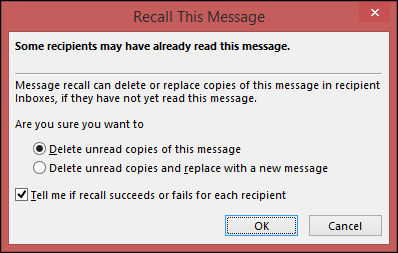
Recall and replace a message - Outlook

  1. In the folder pane on the left of the Outlook window, choose the Sent Items folder.
  2. Open the message that you want to recall. You must double-click to open the message. Selecting the message so it appears in the reading pane won't allow you to recall the message.
  3. From the Message tab, select Actions > Recall This Message.

Click Delete unread copies of this message or Delete unread copies and replace with a new message, and then click OK.
Recall this message box
Binoj

What are the Outlook settings for Office 365


Office 365: POP, IMAP / SMTP settings for Office 365
POP settingsServer name: outlook.office365.com Port: 995 Encryption method: SSL
IMAP settingsServer name: outlook.office365.com Port: 993 Encryption method: SSL
SMTP settingsServer name: smtp.office365.com Port: 587 Encryption method: TLS or STARTTLS

Monday, October 14, 2019

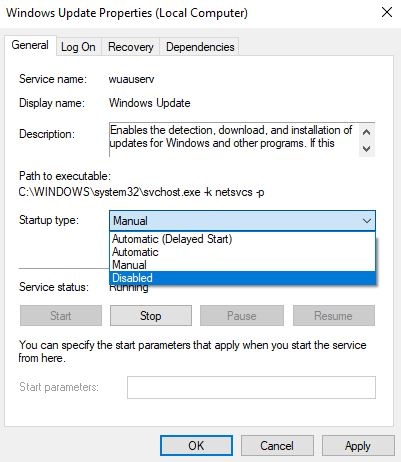
How to Turn off Windows Updates in Windows 10


Step 1:  Go to Control Panel > Administrative Tools > Services.              In the Services window, scroll down and select Windows Update.
Step 2:  Right-click and select Properties.


Step 3:  Under the General tab > Startup Type, select disabled. That will take care of Windows Updates not being installed on your machine.


How to Tell if You Are an Administrator

  How to Tell if You Are an Administrator You will need to have administrative privileges in order to install software or perform certain ot...