Thursday, July 18, 2019

How to format a USB drive to FAT32 on a Mac

How to format a USB drive to FAT32 on a Mac

Formatting would erase data completely, make sure that you have a data backup.

You want to be able to use the drive on a Windows PC, as well as a Mac — perhaps to transfer files between the two machines.
.
The fact that Fat32 can be read from and written to on both Mac and Windows makes it very versatile. However, there is a significant limitation — individual files have a maximum size of 4GB. So, if you’re using the USB drive to store large video files, you may run into trouble. There is a solution, however, exFAT. Unlike FAT32, exFAT doesn’t have a maximum file limit. Better still, it can be read from and written to on any Mac running Mac OS X Snow Leopard or later and on Windows.

To format a USB drive in FAT32 or exFAT:

1. Plug the USB drive into your Mac.
2. Go to Applications>Utilities and launch Disk Utility.
3. Click on the USB drive in the sidebar in Disk Utility.
4. Click Erase in the Disk Utility toolbar.
5. Type in a name for the formatted disk.
6. Click on the Format menu and choose either MS-DOS (FAT32) or ExFAT.
7. Click Erase.

Tuesday, July 16, 2019

How To Setup An Archive Folder in Outlook for MAC.


Outlook 2011 for Mac

You would need to create Archive folder on the local computer. To un-hide On My Computer folder:
In Outlook 2011, click on the Outlook menu at the top of your screen, Select "Preferences", uncheck the box "Hide On My Computer Folders".
To create local archive folder right-click or (ctrl/click) on the "On My Computer", then select "New Folder".

Outlook 2016 for Mac

NOTE: The archive button is available on Exchange 2016.
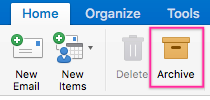
To create an archive folder choose one or more messages that you would like to archive, select "Archive" on the ribbon.
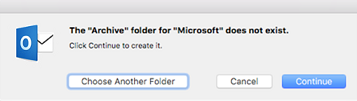
As soon as you choose "Archive", you will get a prompt the "Archive" folder for "Microsoft" does not exist, to proceed click the "Continue" button.
The Archive folder will be automatically created.

To set up archiving rule

  1. In Outlook 2011 or 2016 for Mac, go to "Tools", then select "Rules".

    The other option is to go to "Rules" from the ribbon and select "Edit rules".


  2. Select Exchange on the left pane menu and click on '+' to add a new rule:


  3. Give the rule a name and specify the conditions using drop-down lists as follows:
    • If all conditions are met: Selected.
    • When a new message arrives: Date Received | is greater than | enter any number | days old.
    • Do the following: Move Message | any folder on your computer.
    • Do not apply other rules to messages that meet these conditions: Enabling this option is up to you and depends on your other rules.
    • Enabled: Checked.


  4. Click "OK" and save the rule.
  5. Apply the rule by clicking on the source folder, then select "Rules", then "Apply" and select the name of the rule you just made.


  6. When you export the data from Archive folder, you select "File", then "Export".
    The next window comes up, select types of items that should be included in the archive file, then click the "Continue" button.


  7. On next dialog window type the name of the archive file and select the location on your MAC, where the file should be stored, then click the "Save" button.


    NOTE: This rule may run a long time the first time you run it depending on your mailbox size.
  8. After the archive is completed, you will find the .olm file with your mailbox items saved on the Mac.


  9. To confirm the items are in the file. Click on "File", then "Import", then select "Outlook for Mac Archive" file, then select the file.
    The file should displayed the list of folders. If all items are in place, you may clean out the archive folder.

Archive messages in Outlook for Mac

Archive messages in Outlook for Mac

Outlook 2016 for Mac includes a new feature called one-click archiving. This feature allows you to quickly move an item from your Inbox or another folder to an archive folder. An archived item (or items) remains accessible, but doesn't clutter your Inbox.

Archive messages with a single click

You can archive messages in any of the email accounts that you've connected to Outlook 2016 for Mac. These include Exchange (version 2016 and later), Office 365, Outlook.com, Hotmail, iCloud, Google, and Yahoo!
  1. Choose one or more messages in your folder to archive.
  2. On the ribbon, choose Archive.
  3. As soon as you choose Archive, messages are immediately moved to the archive folder you've specified. If you archive a message by mistake, go to the archive folder and move the message back to your Inbox.

First time using the archive?

If you haven't previously set up an archive folder for an email account, you'll get this prompt:
This message displays the first time you use the Archive button in Outlook 2016 for Mac
Choose one of the following:
Continue. A new folder will appear in your folder list for that email account. You'll have to repeat this process to create an archive folder for each of your email accounts. The folder will be called Archive for Office 365, Outlook.com, Hotmail, iCloud, Google, and Yahoo! accounts. The archive folder for Gmail is called All Mail.

Wednesday, July 3, 2019

msn.com launches on startup Windows 10

Open Regedit:
(Windows + R Keys simultaneously to open Run Dialog and type regedit, hit enter)
Navigate to this Key and if it exists, change the value from 1 to 0

HKEY_LOCAL_MACHINE\SYSTEM\CurrentControlSet\Services\NlaSvc\Parameters\Internet\EnableActiveProbing

How to Tell if You Are an Administrator

  How to Tell if You Are an Administrator You will need to have administrative privileges in order to install software or perform certain ot...